Batch File Tutorial: Automate the Windows Tasks You Do by Hand
If you back up the same folders, rename the same files or sort the same downloads every week, a batch file can do it in seconds. This tutorial walks through two real scripts, line by line, in language a beginner can follow.
What a batch file is, in plain terms
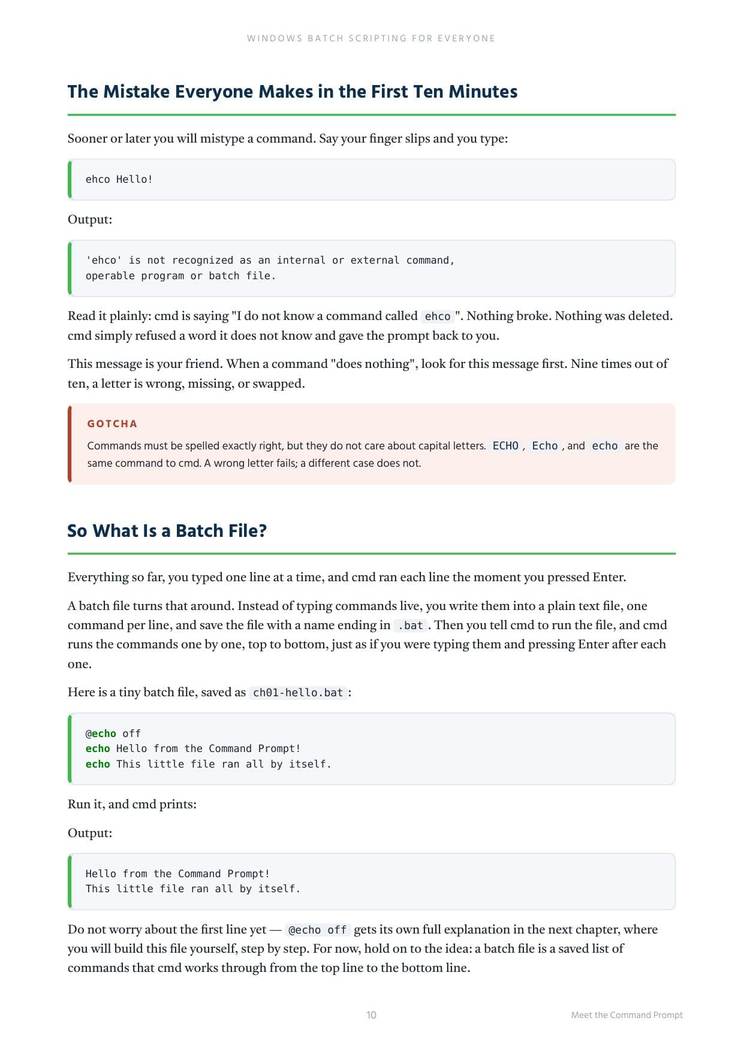
A batch file is a plain text file, ending in .bat, full of commands that
 Windows already understands. Double-click it and
the Command Prompt runs the lines from top to bottom, exactly as if you typed them, except it
never gets bored, never misclicks, and finishes in seconds. Nothing to install: Notepad and
the Command Prompt are already on your machine.
Windows already understands. Double-click it and
the Command Prompt runs the lines from top to bottom, exactly as if you typed them, except it
never gets bored, never misclicks, and finishes in seconds. Nothing to install: Notepad and
the Command Prompt are already on your machine.
Before you write anything
- Make a practice folder, and only ever experiment in it. Scripts do precisely what you wrote, including the mistakes.
- Write scripts in Notepad or any plain text editor. When you save, choose "All files" in Notepad's save dialog and name the file with .bat at the end, or you will get a .bat.txt file that does nothing.
- End learning scripts with the command
pause. Without it, the window closes the instant the script finishes and you never see its messages.
Script 1: back up a folder with one double-click
This script copies a work folder to a backup location using Robocopy, the copying tool built into Windows for exactly this job:
@echo off
set "SOURCE=%USERPROFILE%\Documents\Work"
set "DEST=D:\Backup\Work"
robocopy "%SOURCE%" "%DEST%" /MIR /R:2 /W:5
echo.
echo Backup finished at %TIME% on %DATE%
pause
@echo offstops the window filling with the commands themselves, so you only see results.setstores your two folder paths in named boxes.%USERPROFILE%is Windows shorthand for your own user folder, so the script works on any account.robocopycopies everything that changed./MIRmirrors the folders so the backup matches the original,/R:2retries a locked file twice instead of giving up, and/W:5waits five seconds between retries.%TIME%and%DATE%are filled in by Windows when the line runs.
One warning worth the space: /MIR deletes files in the backup that no longer exist
in the original, because a mirror is supposed to match. That is what you want from a backup,
but run the script the first time with /E instead (copy everything, delete
nothing) and check the result before you let it mirror.
Script 2: sort a messy Downloads folder
This one makes three folders and moves files into them by type:
@echo off
cd /d "%USERPROFILE%\Downloads"
if not exist PDFs mkdir PDFs
if not exist Images mkdir Images
if not exist Archives mkdir Archives
move *.pdf PDFs\
move *.jpg Images\
move *.png Images\
move *.zip Archives\
echo Sorted. Your Downloads folder is tidy.
pause
cd /dchanges folder, and the/dalso changes drive if needed, which plaincdquietly refuses to do.if not exist ... mkdirmeans "make this folder only if it is not already there", so the script can run every week without errors.move *.pdf PDFs\uses the star as a wildcard: every file ending in .pdf. Add a line for any type you collect, likemove *.docx Documents\.
The commands you will use in almost every script
| Command | What it does |
|---|---|
echo | Prints a message. echo. prints a blank line. |
set | Stores text or a path in a named variable, like set "NAME=value". |
cd /d | Changes the current folder, across drives too. |
mkdir | Creates a folder. |
move and copy | Move or copy files, with wildcards like *.pdf. |
robocopy | The serious copying tool: mirrors folders, retries locked files, logs results. |
if exist | Lets a script decide: do this only if that file or folder is there. |
for | Repeats a command once per file or item. Inside a batch file its variable takes two percent signs, as in for %%F in (*.txt) do echo %%F; typed directly into the Command Prompt it takes one, %F. |
rem | A comment line the computer ignores. Future you says thanks. |
pause | Waits for a keypress before the window closes. |
Three safety habits worth starting with
- Test on copies. Point every new script at a practice folder until it has run clean three times. A script with a typo in a path does not ask if you are sure.
- Read before you run. Any .bat file you download is just text. Open it in Notepad first; if you cannot tell what a line does, do not run that line.
- Keep your scripts. Save them in one folder with plain names like backup-work.bat. In six months you will have a small toolbox you built yourself, and each one started as five lines like the scripts above.